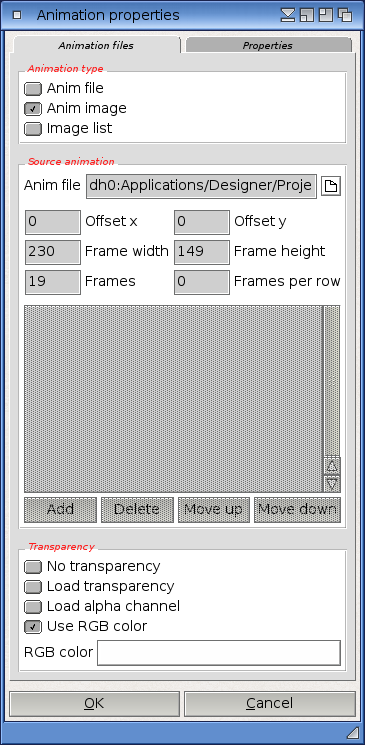
Use this dialog to configure your anim objects. The dialog consists of two pages:
The first page allows you to specify the source file(s) for the animation object. This must be one of the following options:
Additionally, you can select a transparency option for the anim object. This can be either an RGB color that shall be made transparent, or you can choose to have Hollywood Designer load transparency information from the image file. Alternatively, you can also tell Hollywood Designer to load the animation's alpha channel for several levels of transparency.
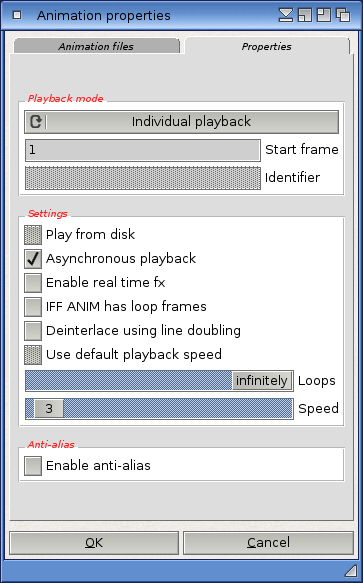
The second page allows you to configure several playback related options. You can configure the playback speed and whether or not the animation should be played directly from disk. Small animations should always be loaded into memory first. You can also specify the frame number at which playback should start. Normally, this should be set to 1 (i.e. first frame). Additionally, you can specify how many times the animation shall be played and whether it should be looped forever. You can also define whether or not antialiased interpolation should be used when scaling or rotating this anim object.
If you select the "Use default playback speed" option, Hollywood Designer will play the animation at the playback rate defined in the selected animation file. Note that not all animation formats support such a default playback rate. For GIF ANIM and IFF ANIM it is generally supported though the default playback rate might also be set to an invalid value.
If you select the "Asynchronous playback" option, Hollywood Designer will not wait until the anim has finished playing before going on with the project. Checking this option is useful for playing multiple anims at the same time, or for having an anim playing in the background.
If you select "Deinterlace using line doubling", Hollywood Designer will deinterlace interlace anims by doubling the lines of a half-frame instead of combining two half-frames into a full frame. This is only required for obscure interlaced formats like IFF ANIM16i and IFF ANIM32i.
If you select "IFF ANIM has loop frames", Hollywood Designer will assume that the IFF ANIM has loop frames and it will skip the last two frames. Hollywood Designer is not able to auto-detect whether an IFF ANIM has loop frames; that is why you have to manually enable this here.
Check the "Enable realtime fx" box to enable real time transition effects for this anim object. Enabling realtime effects means that if you choose to show/hide an anim object using a transition effect, Hollywood Designer will keep playing the anim while showing the transition effect. If you do not check the "Enable realtime fx" box, Hollywood Designer will first show the transition effect, and then start playback of the anim (when the effect has finished).
Finally, you can choose a playback mode for this anim object. This is for advanced users, because it allows you to fine-tune the behaviour of the anim object. You can choose between the following playback modes: